
Help
How to use Suffering Jukebox
A jukebox anyone can add to, playing public YouTube videos. This page covers everything it does, from pressing play to sharing what you are listening to with friends.
Start here
You do not need an account to listen. Open any artist, press play, and the music starts.
Sign in with Google when you want the site to remember things: your hearts, your play history, your playlists, the artists you have added, and the songs you have hidden. Signing in is also what lets you add music and put a jukebox on air.
- Browse from Explore Artists, or search a lyric you half remember.
- Play anything with one click. Songs stack up in a queue you can reorder and save.
- Add a song, a playlist or a whole discography from Import Music.
- Share a link to any jukebox, or download last night's picture of it.
- Go live with the Online Jukebox and let friends queue songs from their own phones.
Finding music
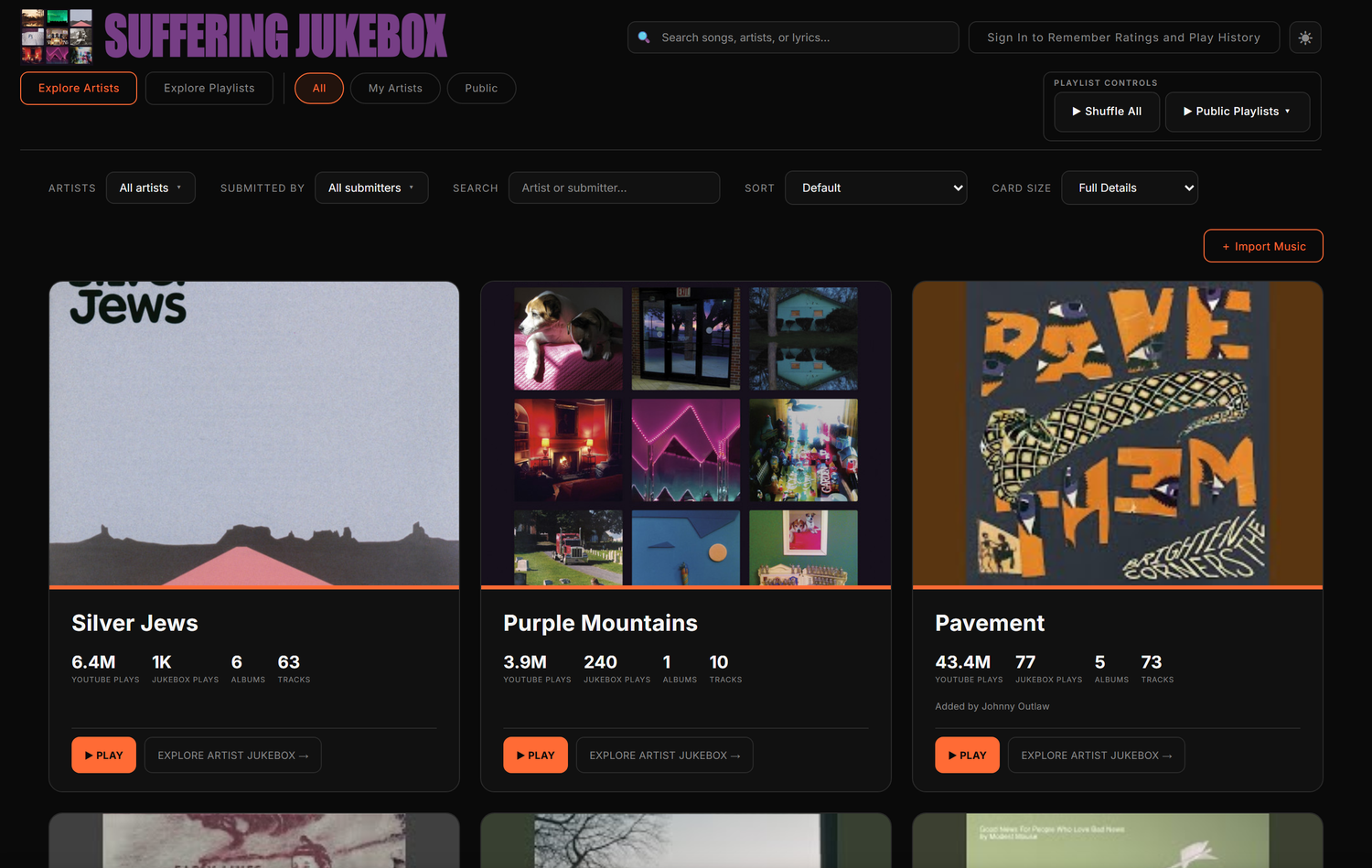
Explore Artists is the front page: every artist anyone has added. Tap a card to open it, then Explore Artist Discography to go in, or ▶ Play to start listening straight away.
Above the grid, Sort changes the order and Card Size changes how much each card tells you: artist name only, total YouTube plays, or full details.
Search
Search at the top of the screen looks through songs, artists and lyrics at once. Searching a line you half remember is often the quickest way back to a song, and it will take you to the right point in the right jukebox.
Every artist has an address
Each artist gets their own page at sufferingjukebox.stream/artist-name. That
address is the whole jukebox, charts and all. It is the thing to send somebody.
The ✕ in the corner of an artist card hides that artist from your grid. Hidden artists are remembered on your account and stay hidden after you sign back in. Bring them back from the account menu under Manage My Artists.
Jukebox controls
Inside an artist's jukebox, five views show the same records five ways. The view buttons sit under Jukebox Controls, which you can fold away with the caret beside the label.
| View | What it is good for |
|---|---|
| By Year | The discography in order, oldest first. The default. |
| Timeline | The same records spaced by when they came out, so the quiet years are visible. Desktop only. |
| By Views | Most watched album first. |
| Albums List | Covers and songs, no charts. |
| All Tracks | Every song in one sortable table. |
What the bars measure
On the first four views every album carries a bar, and the caret on the view button is where you choose what that bar is counting.
- Total YouTube Views: how many times the videos behind these songs have been watched on YouTube. The public number.
- Hearts: playback reactions listeners sent while these songs played.
- Jukebox Plays: how many times the album has been played on this site, by anyone.
- My Jukebox Plays: how many times you have played it. Signed in only.
- Hide Bars: just the covers, no chart.
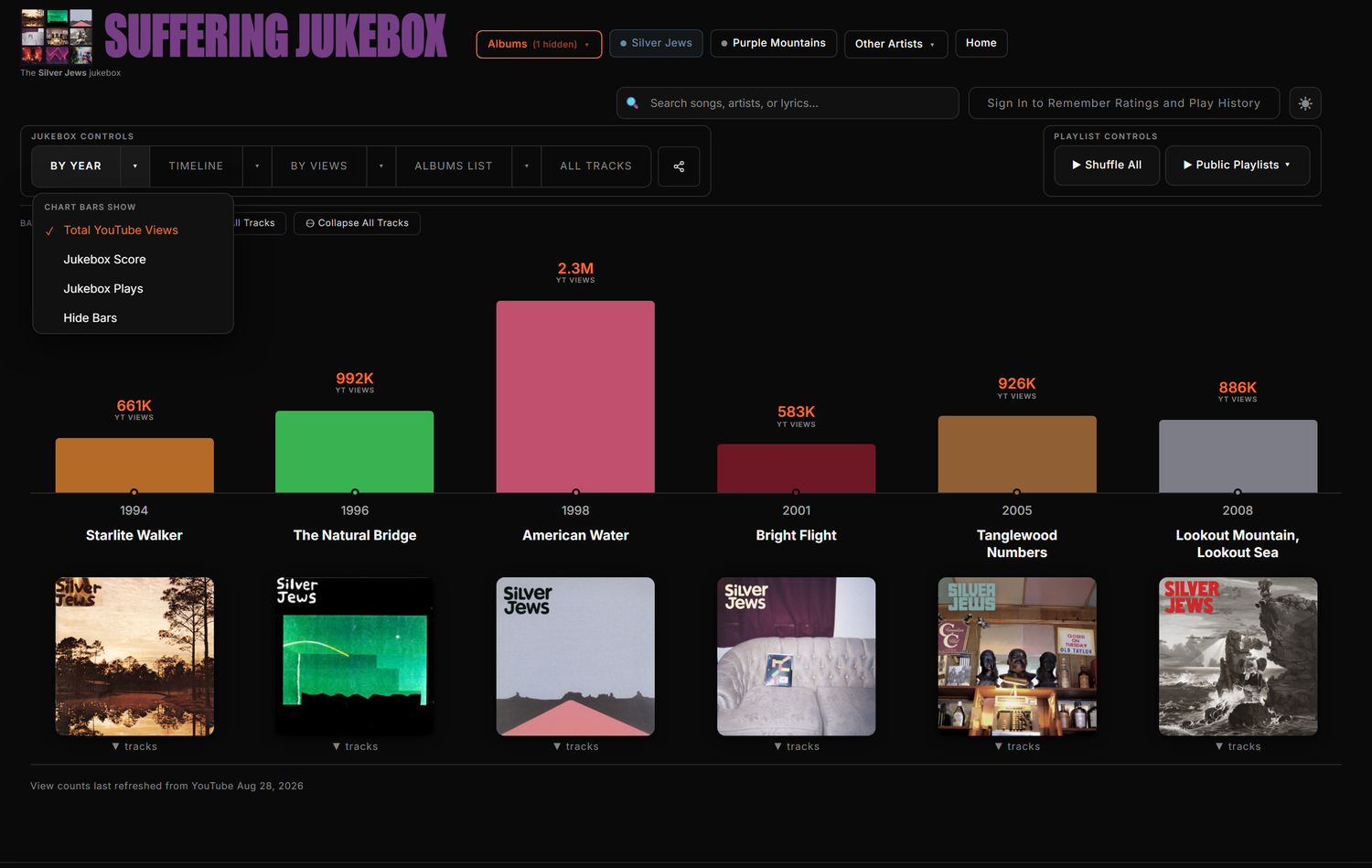
The same jukebox, five ways
Screenshots are generated automatically each night for every artist in the jukebox, for easy downloading and sharing. These are the Silver Jews ones.
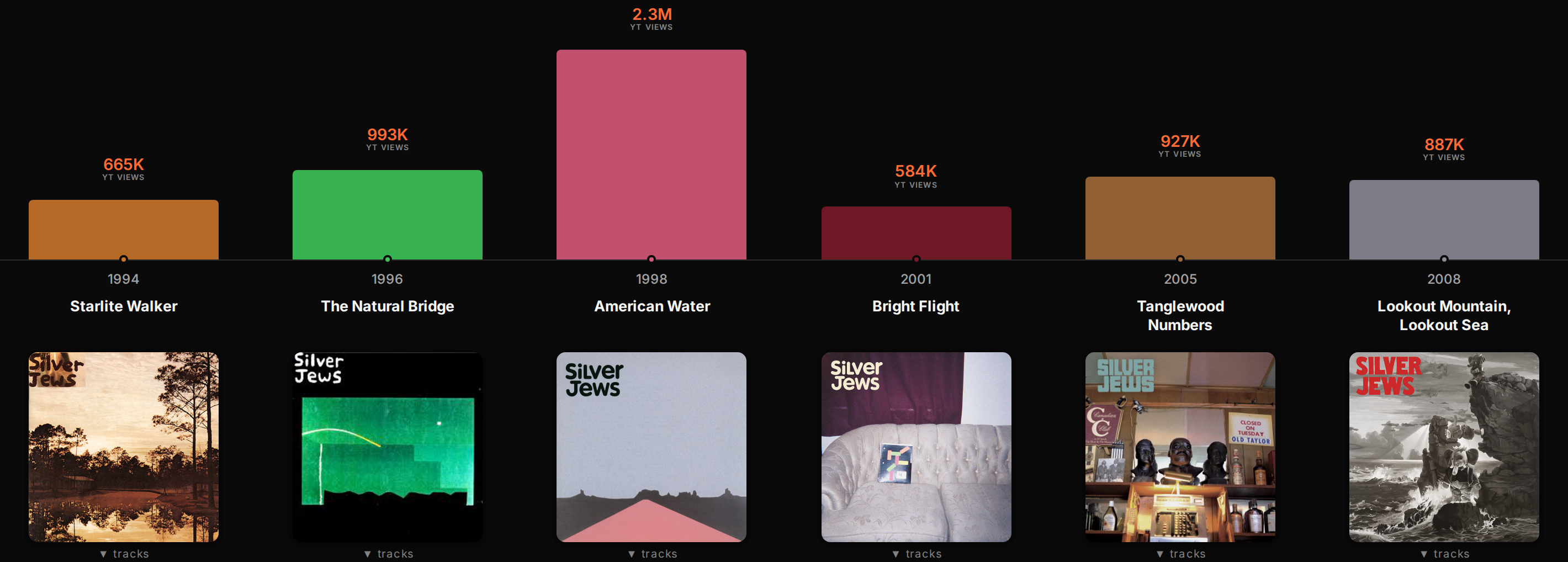
Timeline
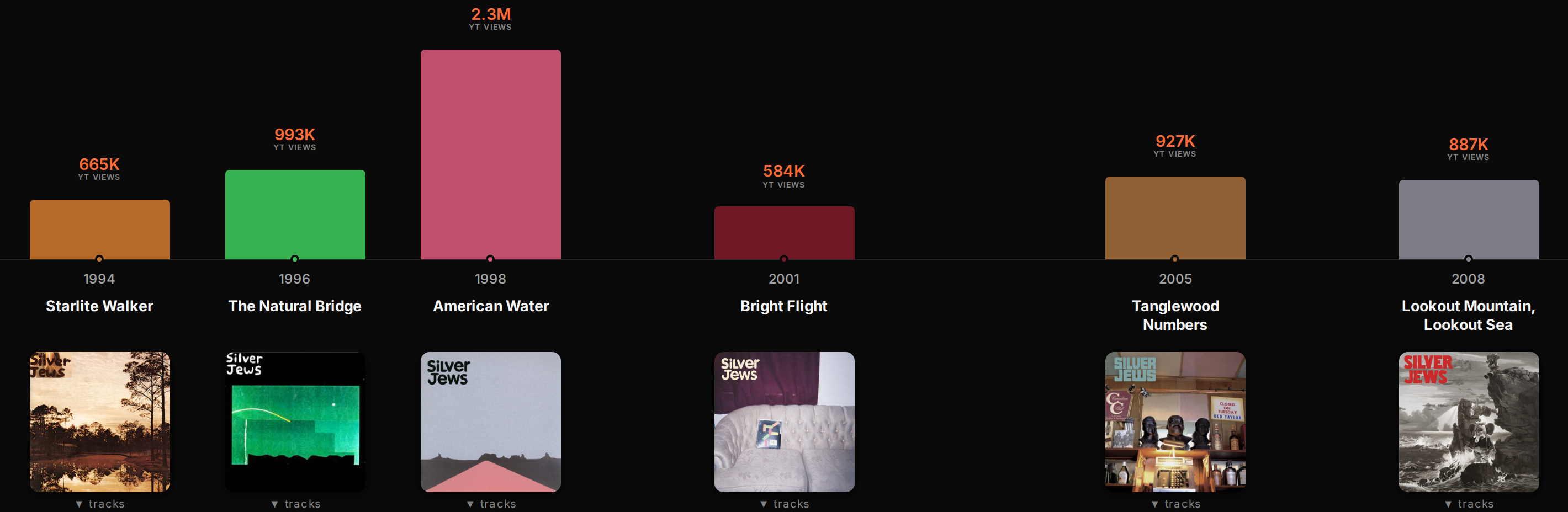
Records spaced by release date. The gap between 2008 and 2019 is the point.
By Views
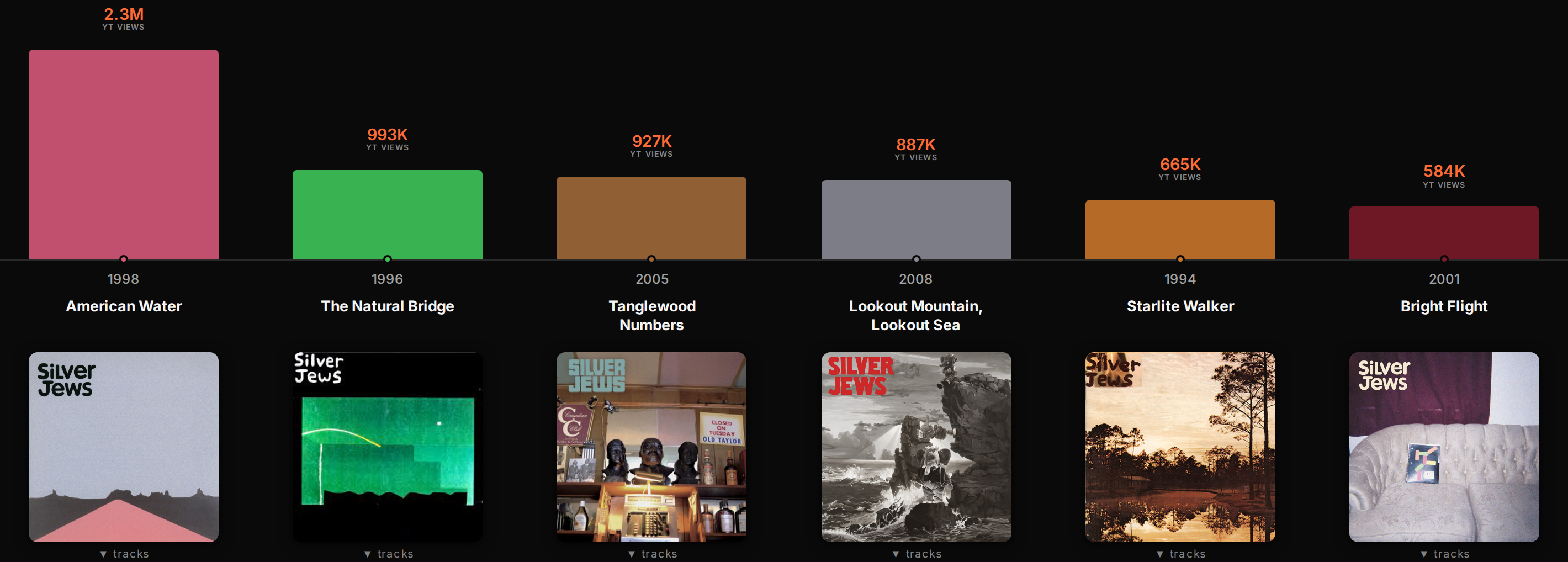
Same albums, biggest first.
Albums List
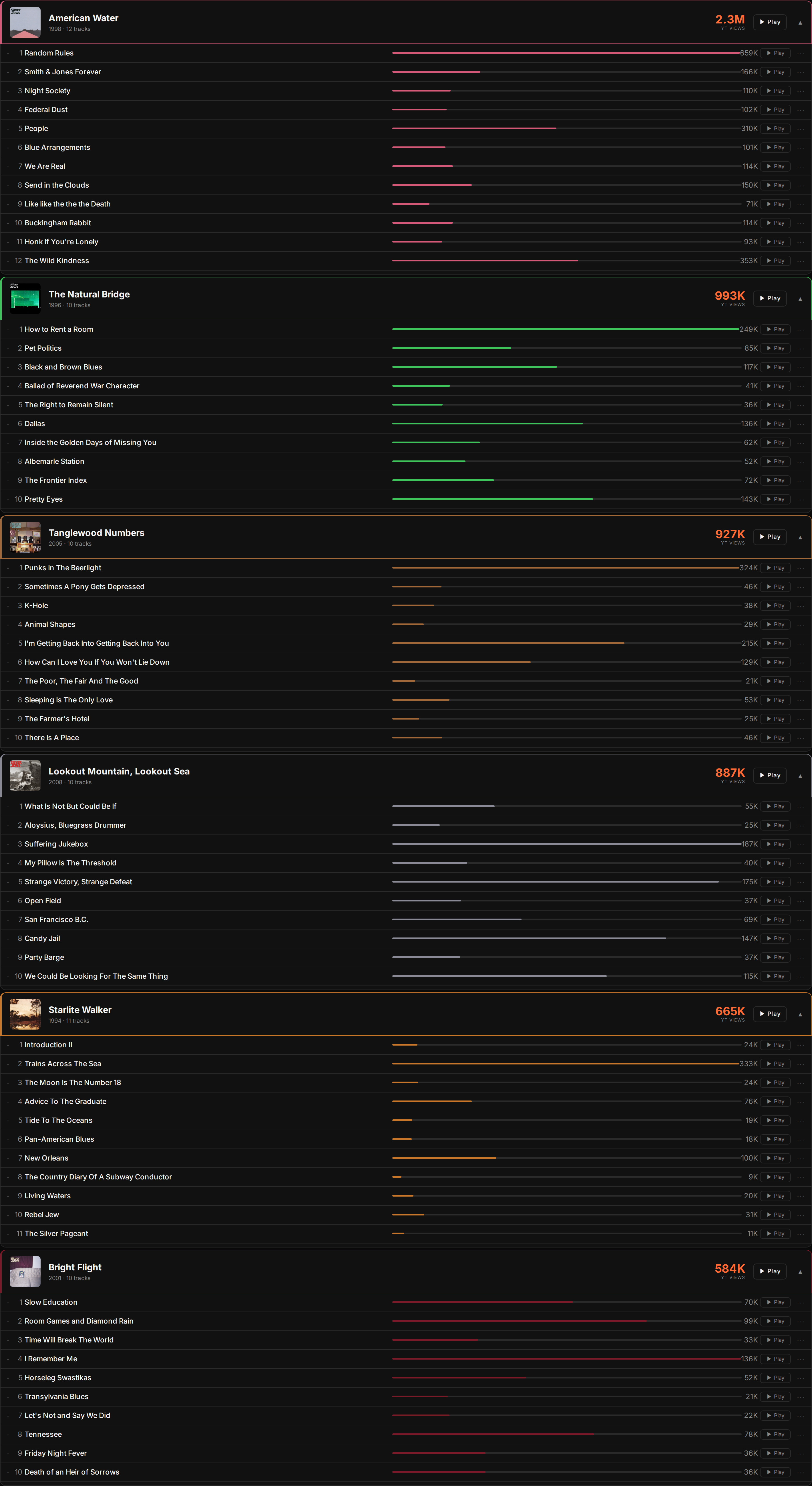
No charts, every song on screen.
All Tracks
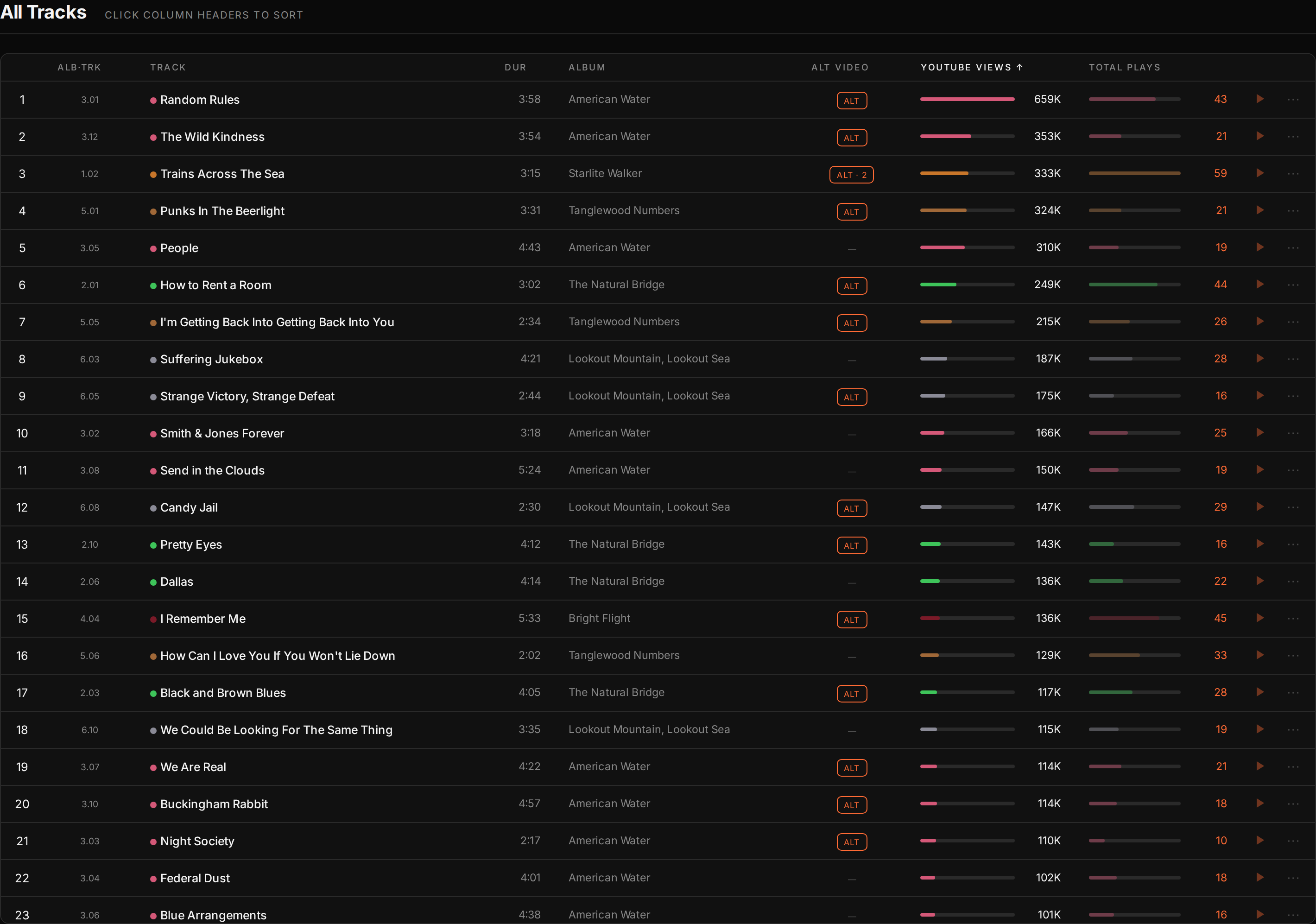
One table, sortable by views, plays or your own plays.
Sorting All Tracks
All Tracks has no chart, so it gets a sort instead: Chronological, YouTube Views, My Plays and Total Jukebox Plays. Every one of them is highest first. Clicking a number column in the table sorts biggest first the first time, and flips on the second click.
Opening and closing songs
⊕ Expand All Tracks and ⊖ Collapse All Tracks open or close every album's song list at once. On a phone, and on any jukebox with more albums than fit comfortably across the screen, albums start closed so the chart has room to breathe. Open the ones you want with ▼ tracks.
Showing fewer albums
The album filter above the chart takes albums out of the view. That changes the charts, the queue and what ▶ Play plays, so it is also how you say "studio albums only, no compilations".
Playing music
Click any song for Play now or Add to queue. Play now starts it immediately. Add to queue puts it at the end of what is coming up. Clicking an album's play button queues the whole record.
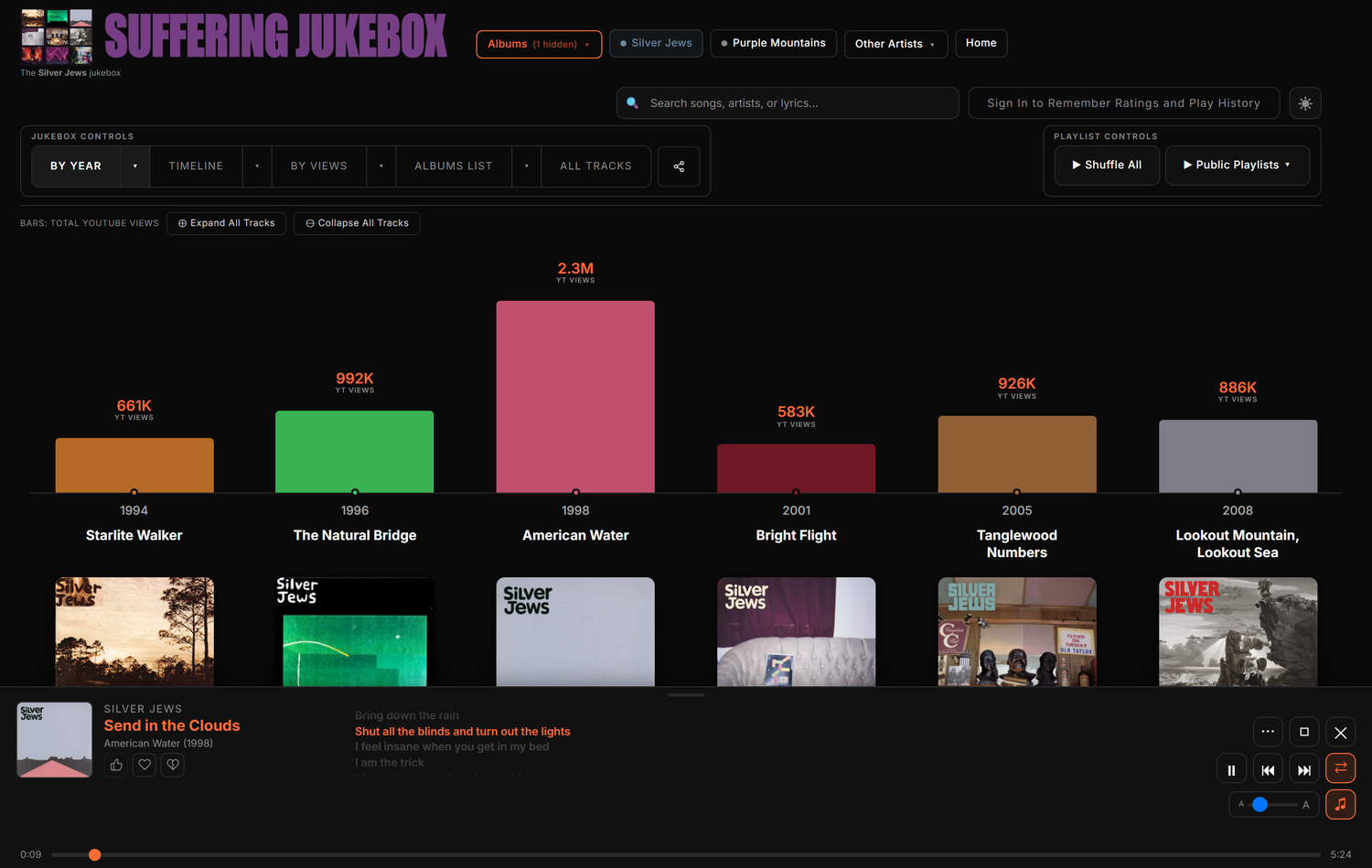
The queue
- Reorder with the ▲ and ▼ arrows on each row, or Move up and Move down in its ⋯ menu.
- Play this song next jumps a song to the front of the line, and it holds even with shuffle running.
- Search inside a long queue with the box at the top of the list.
- Save Playlist turns the whole queue into a playlist you can come back to.
Shuffle can follow your taste
In Playback preferences under the account menu, pick how shuffle behaves:
- Discovery: bring songs forward that do not get played much.
- Favorites First: lean on what you already like.
- Less Repeats: push songs you played recently back.
- No Preferences: an even shuffle.
On a phone
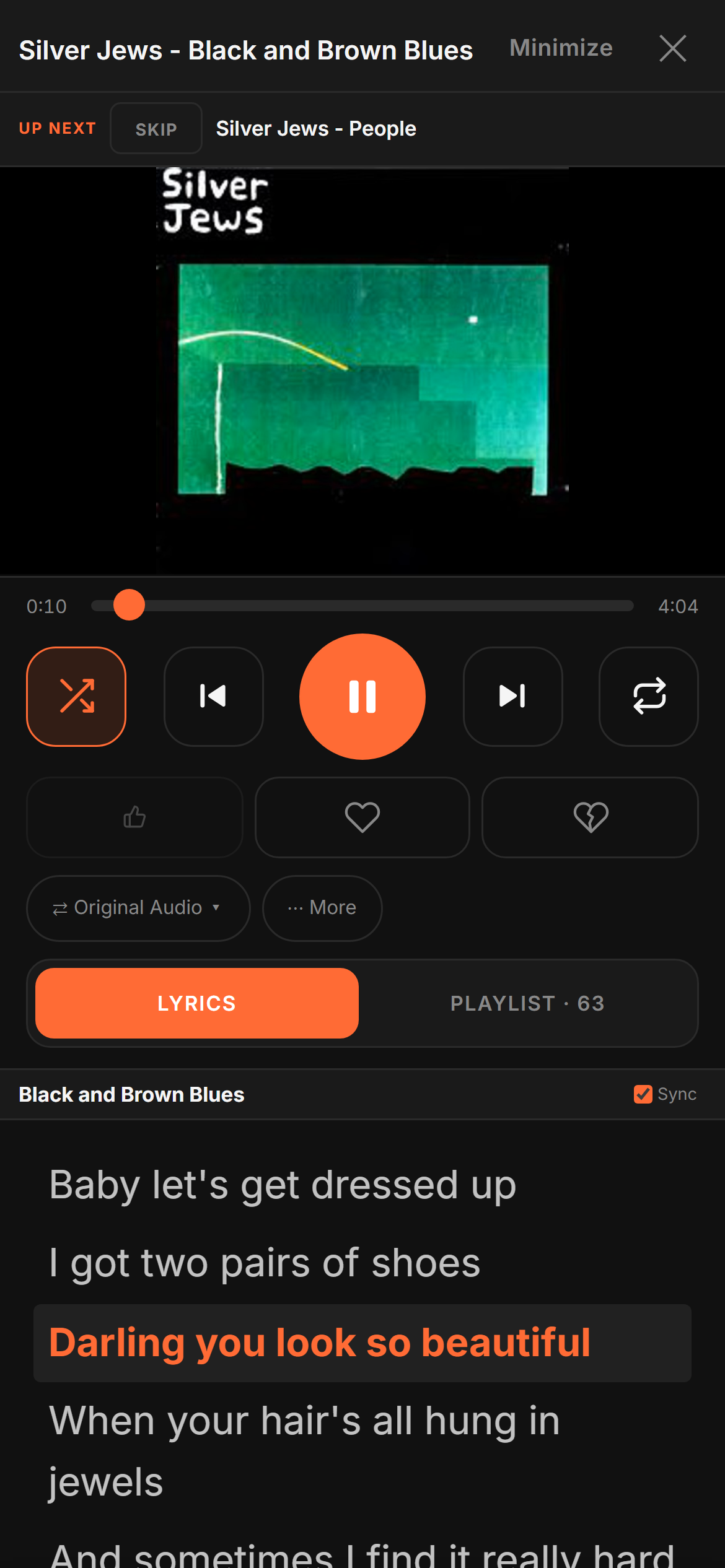
The phone player is built around big buttons: shuffle, back, a large play, forward and repeat in a row under the video, with the timeline above them. One panel underneath switches between the words and the playlist, and it remembers which one you had open.
Hearting songs
Every song carries a heart. It is a playback reaction: send it from the player while a song is playing and it stamps the moment you were at. Hearts build your Favorites playlist and are one of the things chart bars can measure. Right-click a heart on a computer, or hold it down on a phone, to take back the last one you sent.
A YouTube video stops when your phone locks. That is YouTube's rule, not ours, and it is the one thing on this site that needs a file rather than a link. See How the site works.
Playlists
A playlist is just a queue you kept. There are three ways to build one.
- From what is playing. Queue up songs however you like, then Save Playlist in the player.
- Song by song. The ⋯ menu next to any song has Add to playlist. The tick is the toggle, so tapping a playlist that already has the song takes it back out. One control, both jobs, nothing to confirm.
- From a YouTube playlist. Start a playlist draft, search YouTube playlists or paste a playlist link, look through the songs it found, and tick the ones you want. You are never forced to take all of it.
Manage Playlists in the account menu is where they all live. A playlist can be private to you or public, and a public one has its own shareable page. The Playlists view inside a jukebox shows the ones that touch that artist.
Shuffle All and Shuffle Favorites above the chart build a queue on the spot out of whatever is currently in view, which is the fastest way to just put music on.
Adding music
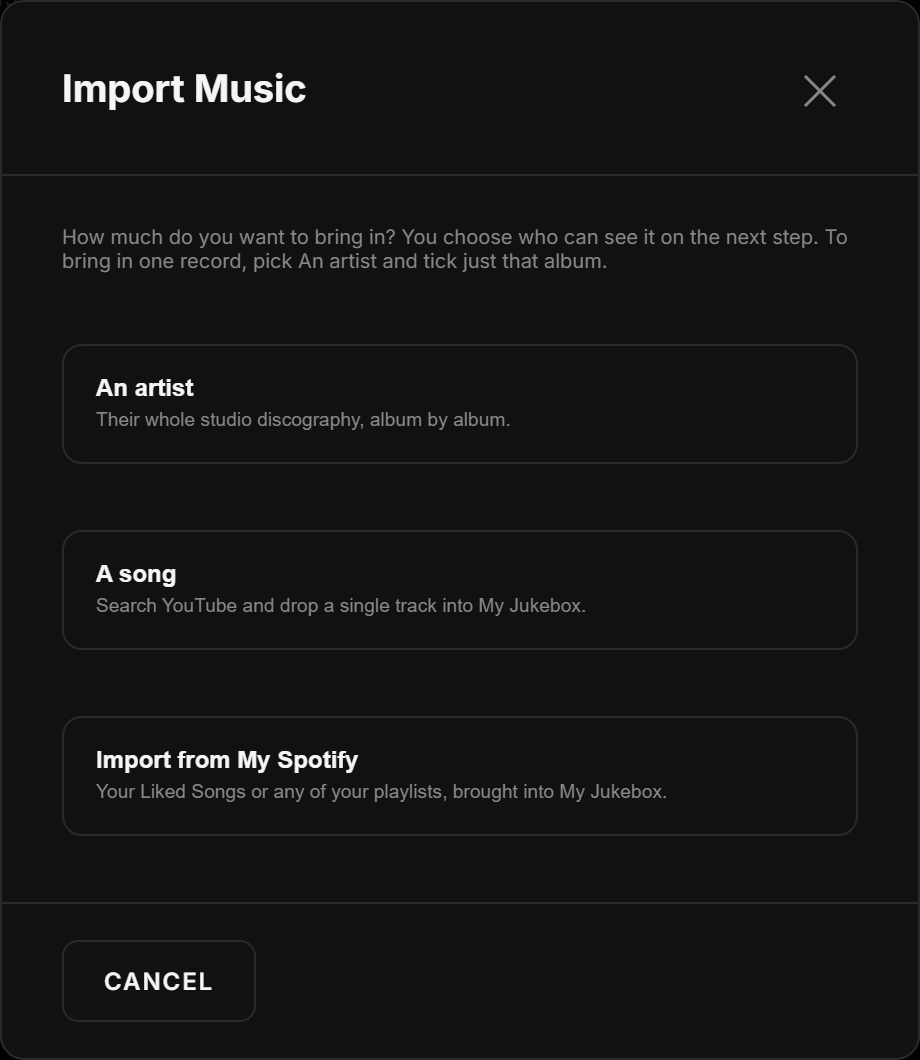
Sign in, then open Import Music from the account menu, the home page or the top toolbar. How much you are bringing in decides which door you take.
One song
Search YouTube, pick the video, done. The song does not land on its own: it also creates the artist if we do not have them yet, files it under a Singles album, and pulls in the artwork and view count, so songs by the same band group together and the artist gets a card on Explore Artists.
The artist name is read off the upload and shown to you before it lands, so you
can see what it is going to be called. A "- Topic" channel is treated as YouTube's own
statement of who the artist is, then an Artist - Title split, then the
channel name.
A playlist
Start a playlist draft, then search YouTube playlists or paste a playlist link. You get the songs it contains, and you tick the ones you want to keep.
A whole discography
Pick An artist, type the name, and we go and find the records. Step 2 is a tick list of albums. Leave them all ticked for the full discography, or untick down to the ones you want. To bring in a single record, use this door and tick just that album.
What happens while it runs
For each album we look for the matching YouTube playlist. When there is not one, the album is built song by song from the record's real tracklist instead of being skipped, and it is only created if we found at least half of it. Release dates, artwork and lyrics are filled in afterwards.
A big discography takes a few minutes. You can shrink the window down to a pill and carry on using the site while it works, and it will tell you when it is done.
Public or private
Step 2 also asks who gets to see it.
| Choice | What it means |
|---|---|
| Visible to all | The artist joins the shared catalog. Everyone can find it, play it and add to it. |
| In my private jukebox | Only your account sees it. It still behaves like any other artist for you: charts, playlists, lyrics, the lot. |
You can change your mind later from the artist card, which carries a Visible to All / In My Private Jukebox control if you were the one who added it. Two things worth knowing:
- An artist already in the catalog keeps the visibility they have. Your private import will not hide somebody else's public artist, and a public import will not drag a private one into the open.
- Going private never locks you out of your own music.
Single songs are added privately by default. Make them public from the card afterwards.
Refining what you added
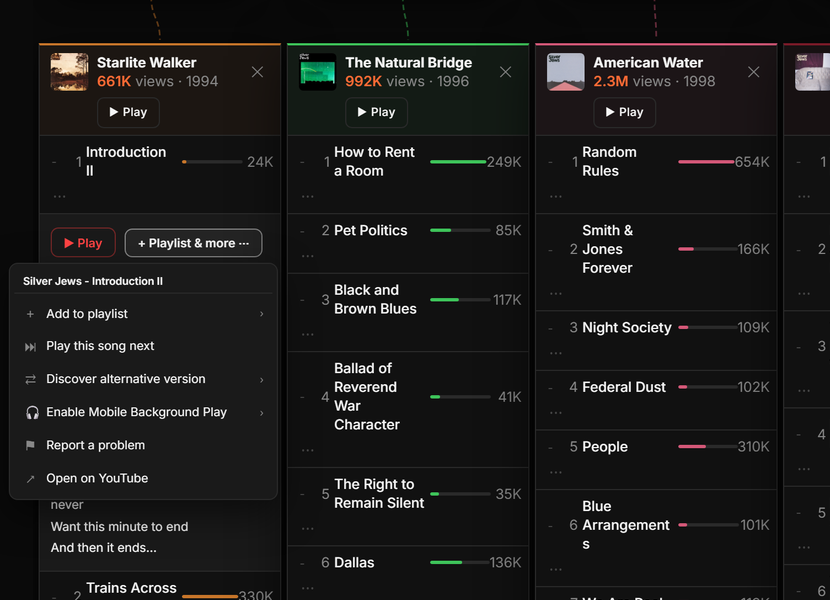
An import is a starting point, not a finished thing. The ⋯ next to any song is where you fix it, and the same menu opens from a track row, from the queue and from the player toolbar.
Versions
A song usually has more than one video behind it: the album audio, the official video, a live take. We keep every one we have ever seen rather than replacing them. Discover alternative version goes looking for more, and the Versions menu in the player switches between them.
The version marked primary is the one that plays. Set it after you have heard the version play, not from the list.
A chart bar uses the most-watched version that still plays, never a total across versions.
Lyric timing
A music video with a long instrumental intro needs the words shifted to match. The offset is set per video, not per song, so fixing the music video does not knock the album audio out of time. It is in the Versions menu.
When a video is broken
Report a problem on any song whose video will not play. Reported videos are checked and replaced automatically overnight, and the old one stays on record rather than vanishing, so nothing is lost if the replacement turns out to be worse.
Hiding things, just for you
- Take a break from this song puts it away for a while.
- Block hides it for good.
Both are yours alone. Neither one touches anybody else's jukebox.
Fixing an artist
Manage My Artists in the account menu works at the artist level: visibility, hidden albums, background audio, and re-running an import that only brought part of a discography in. An artist that came in narrower than their full discography shows Import Discography into Jukebox on their card until a full run clears it.
Lyrics
Words appear under the song in the player, and they scroll in time with it when we have timed words for that recording. The search box reads them too, so a half-remembered line will find the song.
Editing them
Anyone signed in can edit lyrics. Press Edit under the words, or + Add Lyrics where there are none, type, and save.
Every save is kept. History shows who changed what and when, so a bad edit is never permanent and nothing has to be protected to be safe.
Why some songs have no words
When a song is imported we look it up in a public, openly licensed lyrics database. If it is not in there, we do not have it. We do not scrape lyrics from anywhere else.
That is why words tend to be missing on:
- obscure records, demos and cassette-era releases
- live takes, alternate versions and one-off uploads
- instrumentals
- songs whose YouTube upload is titled differently from the release
Add them yourself and everyone gets them.
That is the video, not the words. A music video with an intro needs a lyric offset, which is in the Versions menu. See Refining what you added.
The Online Jukebox
Turn your jukebox on from the account menu and it becomes a shared listening room. Send the code to the people you are listening with, and anyone who scans it lands on a page, joins with no sign-in and no app, browses your whole collection, and adds to the same queue you are playing.
The room is your player, seen from outside
Whatever is in your queue is what the room shows, at the same second, with the same line of the song lit up. Songs guests add turn up in your own queue marked Added by their name.
What guests can and cannot do
| A guest | You, the host | |
|---|---|---|
| Add songs | Yes | Yes |
| Remove a song | Only their own, and only while it is still waiting | Anything |
| Reorder the queue | No | Yes |
| Skip what is playing | No | Yes |
| Ban somebody | No | Yes, and it takes their waiting songs with them |
Guests are numbered until they choose a name. You set how many songs one person may have waiting.
Who is listening
The listeners panel shows everybody in the room right now and how long they have been there. Click a name to see the songs that person queued, what is still waiting and what has already played, with the ban control in the same place. People who have left drop off the list rather than piling up, so the count is always the number of people actually there.
The panel keeps working with the console closed, which is the normal state for a host who is watching the room rather than running it. While you are broadcasting, the player carries a Broadcasting Live badge, and clicking it opens the panel.
Give the room a short address
sufferingjukebox.stream/yourword is easier to pass on than a six-character
code. Set it in the console next to the jukebox name. Both save together.
A room that has gone quiet
An offline station is not a dead page. Visitors are told the station is offline and offered the last running order you broadcast, sent straight to their own Suffering Jukebox player, where it behaves like any other queue: reorder it, save it, rate the songs, read the words.
Loading a playlist while you are on air stops and asks first if listeners still have songs waiting. Keep their songs, clear only what has already played, or clear everything. It will not quietly wipe people's picks.
A room with nothing played into it for six hours takes itself off air.
Sharing
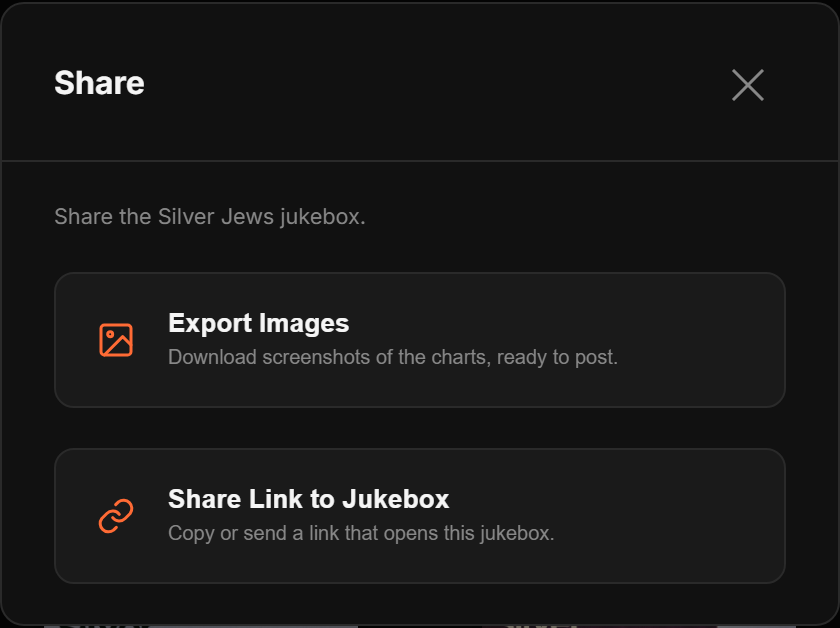
The Share button on the controls row asks what you want: a link, or pictures.
A link
Sharing sends the whole jukebox you are looking at, at
sufferingjukebox.stream/artist-name. Sharing your queue works the same way:
anyone with the link can open it and press play, without an account. Individual songs have
their own share option in the ⋯ menu.
Pictures
Every artist discography is screenshotted every night. Export Image hands you a ready picture instead of drawing one on your device, so it works on a phone.
- Eight views per artist, matching the views in the app, with tracks open and closed.
- Each one in a normal shape and a tall shape sized for stories.
- Plus a link preview card, which is what shows up when you paste an artist's address into a chat.
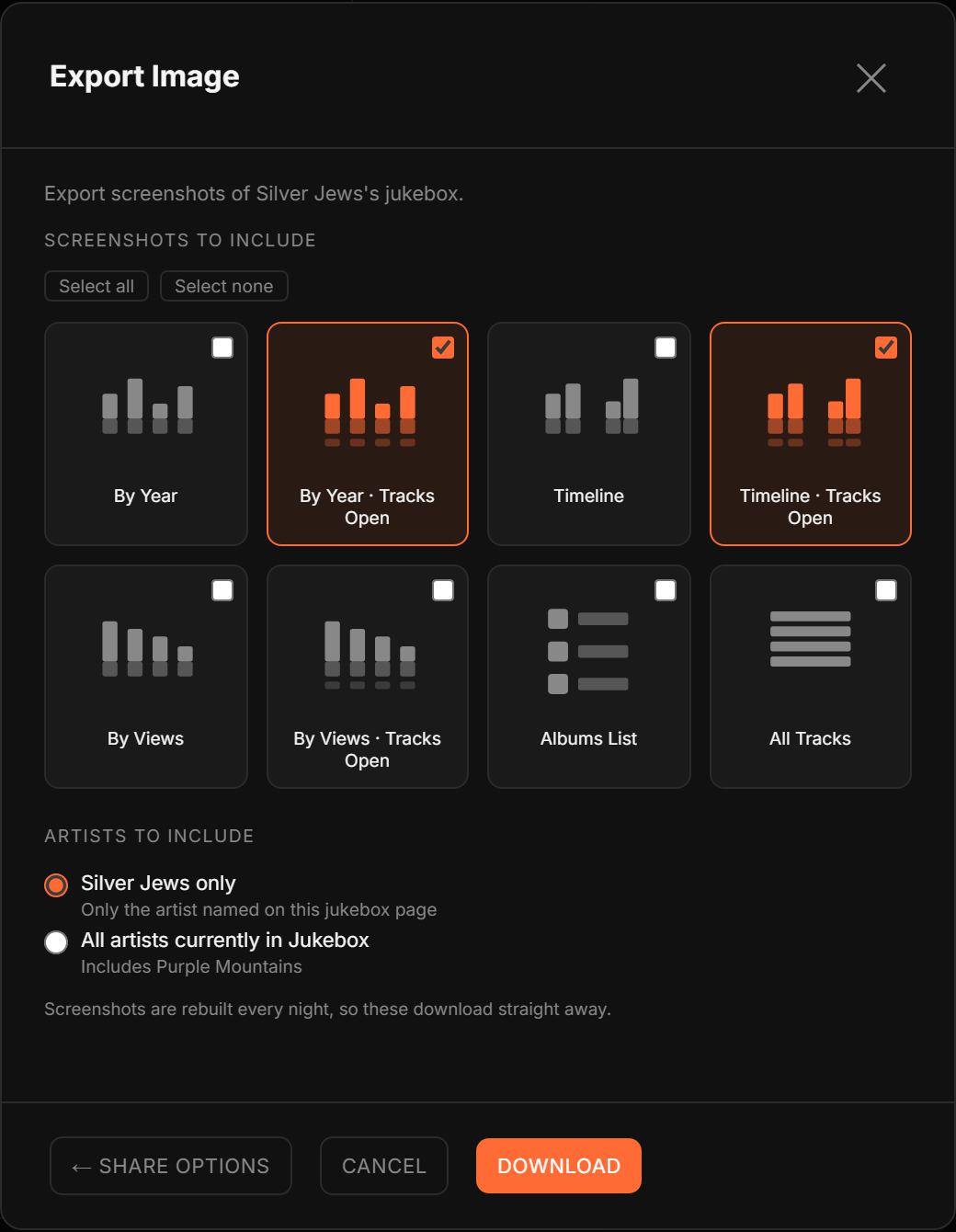
If you have hidden albums in a jukebox, that picture is drawn on the spot instead, so it matches what is on your screen.
Managing your music
Everything below is in the account menu, top right once you are signed in.
My Jukebox
Your own shelf, in two halves. Import music is where you add things. My library is what you have got: the songs and artists you brought in, with quick removal for anything you would rather not keep.
Manage My Artists
Artist-level housekeeping: restore artists you hid from the grid, switch an artist between public and private, hide albums you do not want in the charts, upload background audio, and re-run a partial import.
Manage Playlists
Rename, reorder, delete, and switch a playlist between private and public.
Data & Analytics
Your own listening, charted: plays by artist, your favorite artists by hearts, plays by track, plays by day and time of week, and plays over time. Click any bar, track or day cell to filter everything else to that slice, and click it again to clear.
Export downloads a CSV of your full play history, or a CSV of every artist you have played with their albums, tracks, links and play counts.
Audio storage
How much background-play audio you have uploaded, and how much room is left. See How the site works for what this is actually for.
Change Log
What changed on the site, by date, in plain language. The account menu also shows when the app was last updated.
How the site works
Everything you hear is a public YouTube video. Suffering Jukebox is a way of organizing and playing them. It does not host music. When you press play you are watching a YouTube video, and the artist and the label get that view exactly as they would if you had opened it on YouTube yourself.
The album art, release dates, tracklists and view counts come from what YouTube and public music databases publish. Lyrics come from an openly licensed lyrics database, and from listeners typing them in.
Suffering Jukebox is for personal listening and exploring music. It is not built or licensed for commercial use or public performance.
Background play on a phone
A YouTube embed stops the moment your screen locks. Nothing we can build changes that for YouTube itself. There are two ways to keep music going with the screen off:
- Connect Spotify Premium in Settings → Playback. Matched songs play through Spotify (on a phone, in the Spotify app). Full Premium is required — Free, Lite and Mini do not unlock this. Songs with no Spotify match still use YouTube.
- Or upload your own audio file for a song. Only your account can ever hear that file. It is never played for another listener and never appears in anybody else's jukebox.
Everyone gets 500 MB of upload storage. File size limits scale with how long the track is. The meter under Audio storage in the account menu shows what you have used.
You must have the right to store and personally play whatever you upload. On a computer, and on a phone with the screen on, none of this is involved at all for YouTube listening. Spotify Premium playback works on desktop in the browser as well.
Artists who want their own music available for background play to everyone can go through Artist Upload, which is a separate, reviewed process.
Where the numbers come from
| Number | Source | Updated |
|---|---|---|
| YouTube views | YouTube, for the video behind the song | Every night |
| Jukebox plays | Plays on this site, by anyone | As they happen |
| My jukebox plays | Your plays, yours alone | As they happen |
| Hearts | Playback hearts sent by listeners here | As they happen |
Play counts on the audio side are plays on this site. They are not podcast or streaming download figures, and we will never present them as such.
About the data
Suffering Jukebox is built out of public sources and listener effort. Albums, dates, artwork, tracklists and lyrics come from public music databases and from whichever YouTube upload we could find. Any of it can be wrong.
Things that are commonly wrong, so you know what you are looking at:
- A song can be matched to a live version, a re-upload or, occasionally, a cover.
- An album can be missing songs that are not on YouTube at all.
- A release year can belong to a reissue rather than the original pressing.
- View counts belong to the video, not to the song. A song with three uploads has three counts, and we chart the biggest one that still plays.
- Lyrics are written and edited by listeners, and can be wrong or incomplete.
- An artist page shows the albums somebody chose to import, which may not be the whole discography.
All of it is fixable from the ⋯ menu, and fixing it helps everybody who comes after you. But nothing here should be treated as a discography of record.
Artists, albums, lyrics and playlists are added by people, not by us. If you find something wrong, offensive, or that should not be here, use Report a problem in the ⋯ menu, or write to support@outlawapps.online. Copyright holders should use the copyright page.
Common questions
Do I need an account?
No. Listening, browsing and opening a shared link all work signed out. You need an account to save hearts and playlists, to add music, and to put a jukebox on air.
Is it free?
Yes. Everything on this page is free.
Why does the music stop when my phone locks?
Because a YouTube embed stops when the screen locks, and that is YouTube's rule rather than ours. Two ways around it: connect Spotify Premium in Settings → Playback so matched songs play in the Spotify app, or upload your own audio file for the songs you want to keep playing (private to your account, 500 MB for everyone). See How the site works.
Why does this song have no lyrics?
Because the openly licensed lyrics database we check did not have it. We do not scrape lyrics from anywhere else. Sign in and press + Add Lyrics and everyone gets them. See Lyrics.
The lyrics are out of time with the song.
That is usually a music video with an instrumental intro. The lyric offset is set per video in the Versions menu, so you can fix the video without breaking the album audio.
This song is playing the wrong version.
Open the ⋯ menu and use Discover alternative version, or pick a different one from the Versions menu in the player and set it as primary once you have heard it play.
A video will not play at all.
Use Report a problem. Reported videos are checked and replaced automatically overnight, and the old one is kept on record.
Can I add music that nobody else can see?
Yes. Pick In my private jukebox on step 2 of an import. Single songs are private by default. You can flip an artist between public and private from their card afterwards.
Why did an album come in with songs missing?
Because those songs are not on YouTube in a form we could find. Albums are only created when at least half the record turned up, so a very patchy record is skipped rather than shown as if it were complete.
Why is my import taking so long?
A full discography is a lot of lookups. Shrink the window down to a pill and carry on using the site; it will tell you when it is finished.
Do guests need an app or an account to join my jukebox?
Neither. They scan the code, land on a web page and start adding songs. They are numbered until they choose a name.
Can a guest delete somebody else's song?
No. A guest can only take back their own songs, and only while they are still waiting. Reordering and removing anything else is yours.
I closed my laptop. Is my jukebox still on air?
The room stays open, but with nothing feeding it. After six hours with nothing played into it, it takes itself off air. You can also switch it off from the console at any time.
Does playing music here support the artist?
A play here is a YouTube view on the artist's video, counted the same as if you had opened it on YouTube. That is the whole mechanism, and it is worth what a YouTube view is worth. Buy the record.
I found something wrong, or something that should not be here.
Use Report a problem in the ⋯ menu, or write to support@outlawapps.online. Copyright holders should use the copyright page.